Shuke | LINE Official Account troubleshooting guide
For Shuke stores connecting their own LINE Official Account. Adding Shuke's support account as a friend does not connect your store. In the admin dashboard, find the LINE section under Settings (/admin/settings).
Shuke requires both the Messaging API and a LINE Login channel with LIFF set up by each store. Kebao provides Login and LIFF centrally. Follow the steps on this page for Shuke.
Security reminder: Do not post a full Channel access token, Channel secret, or similar credential in a public community or forward it to an unknown recipient. If needed, share screenshots of the admin error and your LINE settings through support, with the credentials masked.
Connection overview (complete both parts)
1. Messaging API (lets customers receive system replies in your Official Account)
1. Go to LINE Official Account Manager → Settings → Messaging API → Enable. We recommend using your store name for the Provider.
[Screenshot to be added: S1, enabling Messaging API in Official Account Manager under Settings › Messaging API and creating a Provider with the store name]
2. In LINE Developers, open the Messaging API channel for that Provider. Copy the Channel secret at the bottom of Basic settings. At the bottom of the Messaging API tab, choose Issue to generate a long-lived Channel access token.
[Screenshot to be added: S2, the Channel secret at the bottom of Basic settings in LINE Developers]
[Screenshot to be added: S3, issuing a long-lived Channel access token at the bottom of the Messaging API tab in LINE Developers]
3. Paste the credentials into the LINE section of Shuke Settings (/admin/settings), then click “Verify and save” (驗證並儲存). Shuke automatically sets the webhook to the URL displayed in the dashboard.
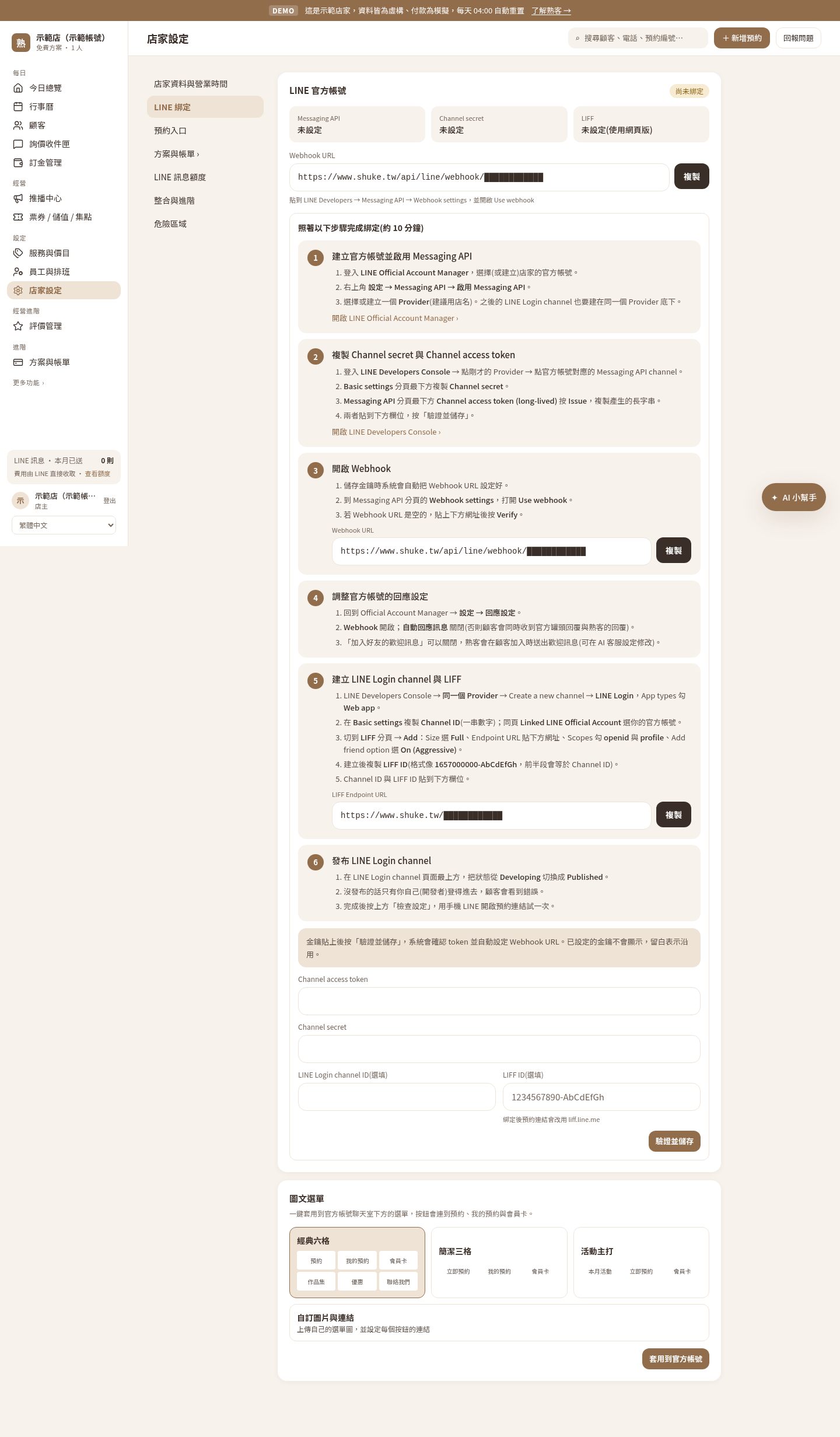
4. In the channel's Webhook settings, turn on Use webhook. If the URL is blank, paste the URL displayed in Shuke and click Verify.
[Screenshot to be added: S5, Webhook settings in LINE Developers, with Use webhook enabled and Verify marked]
5. Go to Official Account Manager → Response settings. Turn on Webhook and turn off auto-response messages to avoid overlapping replies from Shuke and LINE.
[Screenshot to be added: S6, LINE Official Account Manager response settings, with Webhook on and auto-response messages off]
2. LINE Login + LIFF (each store sets this up so customers can open the booking link)
1. Create a LINE Login channel under the same Provider and select Web app for App type.
[Screenshot to be added: S7, creating a LINE Login channel under the same Provider and selecting Web app]
2. Copy the Channel ID. For Linked LINE Official Account, select your store's Official Account.
[Screenshot to be added: S8, the LINE Login Channel ID and Linked LINE Official Account set to the store's account]
3. In the channel's LIFF tab, select Add. Set Size to Full, enter the URL displayed in Shuke as the Endpoint URL, select openid and profile under Scopes, and set Add friend option to On (Aggressive).
[Screenshot to be added: S9, adding a LIFF app with Size, Endpoint URL, Scopes, and Add friend option]
4. Paste the Channel ID and LIFF ID (for example, 1657000000-AbCdEfGh) into the Shuke dashboard.
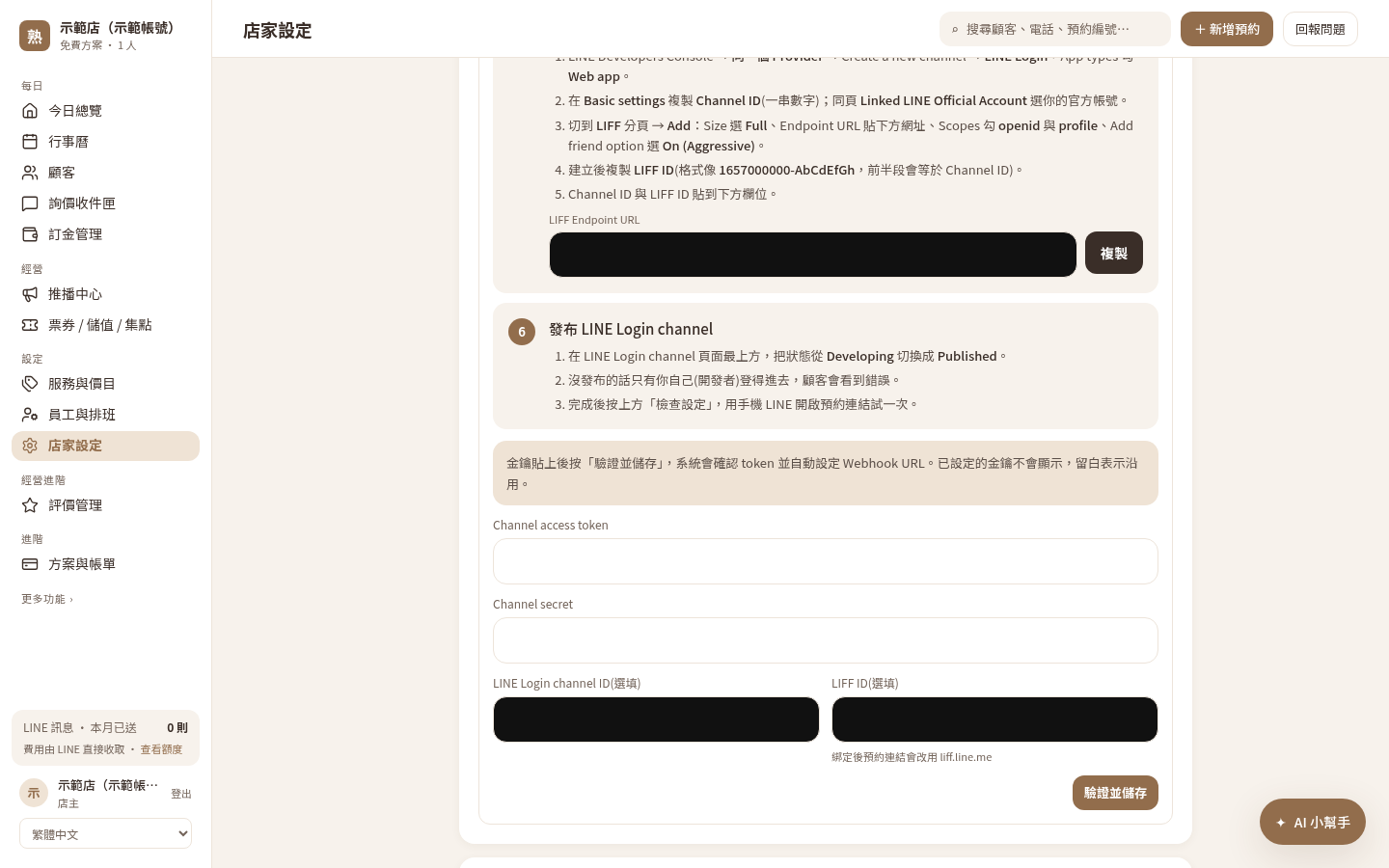
5. Change the LINE Login channel from Developing to Published. In Developing, only the developer can open the link. This is a common issue.
[Screenshot to be added: S11, switching the LINE Login channel from Developing to Published]
6. Customer booking URL: with a LIFF ID, use https://liff.line.me/{your LIFF ID}. Until you have a LIFF ID, use the URL displayed in the dashboard.
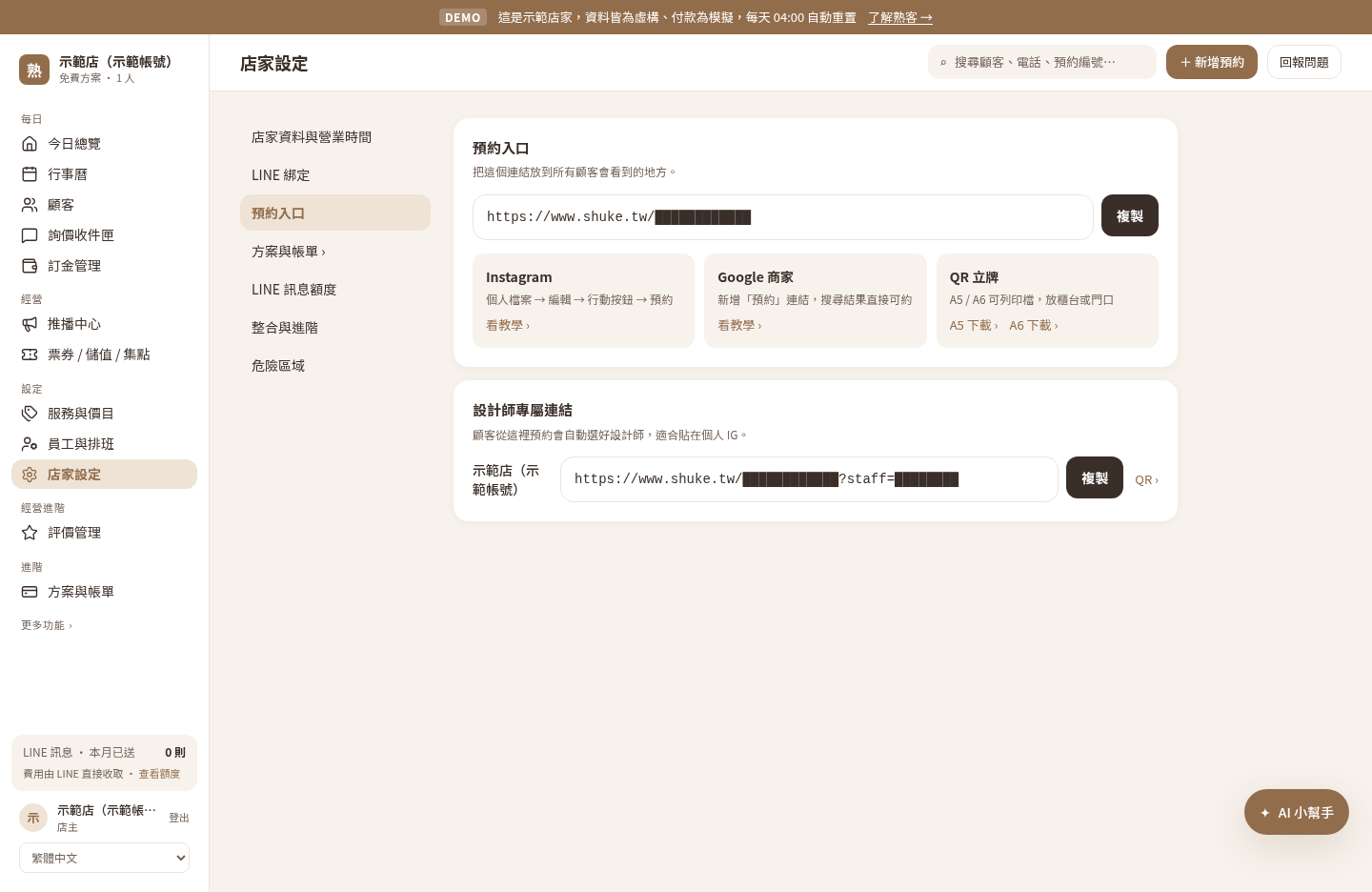
[Screenshot to be added: S12, booking URL with LIFF, once LIFF setup is complete for the demo store]
Store owners sign in to the Shuke dashboard using Shuke's own LINE Login. Stores do not need to configure that channel.
Find the symptom you see below. If the checks for that symptom do not solve it, contact support.
A. “Verify and save” fails or the Messaging API settings cannot be saved
- Symptom: An error appears after you paste the Channel secret or access token, or verification cannot finish.
- Check: Look for missing characters or extra spaces. Confirm you used the long-lived token issued at the bottom of the Messaging API tab. Check that you opened the correct Provider and its Messaging API channel.
- Fix: Open that Provider's Messaging API channel again. Copy the Channel secret from the bottom of Basic settings and the long-lived Channel access token issued at the bottom of the Messaging API tab. Remove leading and trailing spaces, paste both into Shuke, and click “Verify and save” again.
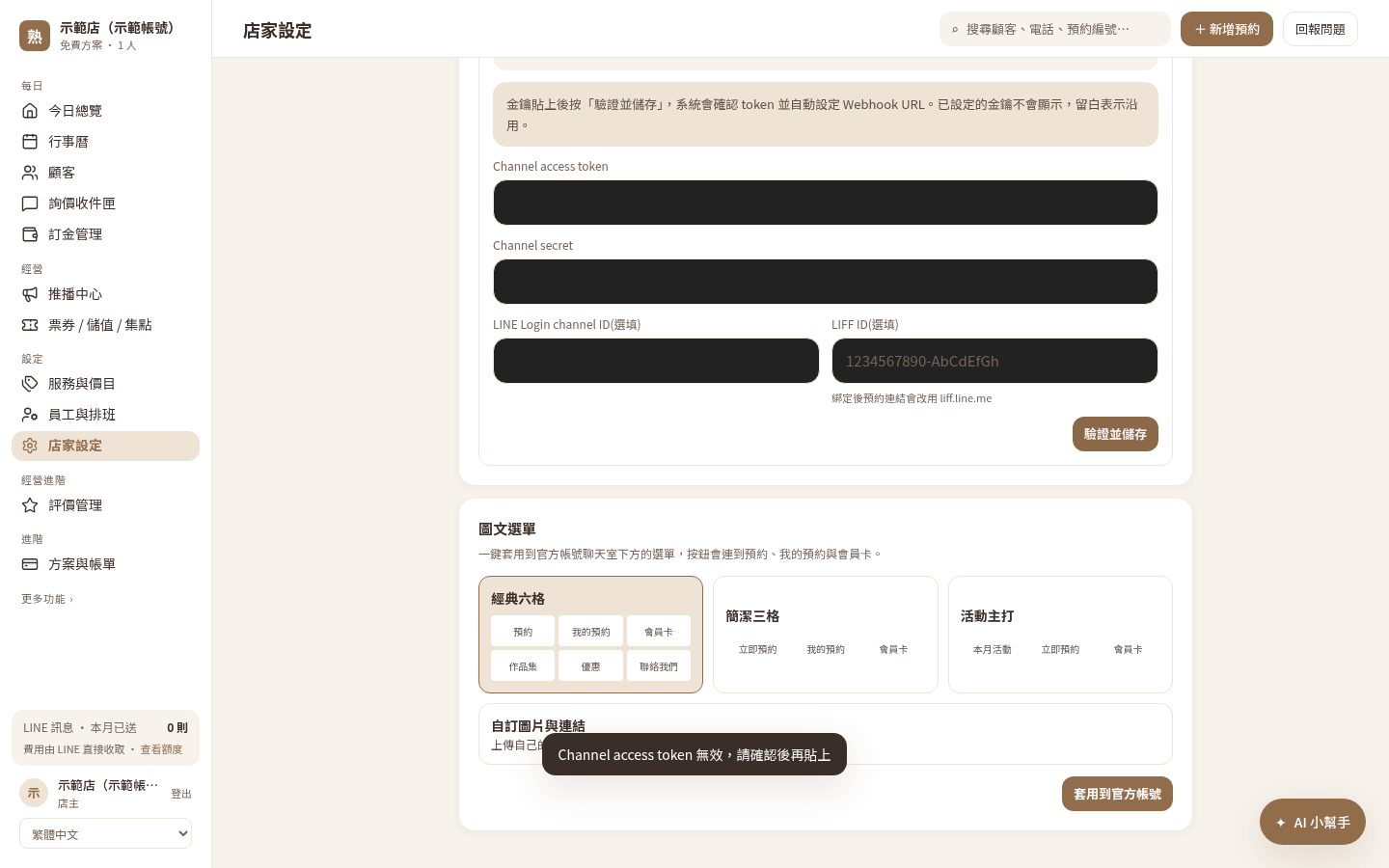
- When to contact support: Pasting and verifying still fails after two attempts. Send a screenshot of the full admin error with credentials masked and provide the channel name. Keep the credentials private.
B. Settings are saved, but customers get no system reply (often because Use webhook is off)
- Symptom: Messaging API verification passed in Shuke, but Shuke's system replies do not appear in LINE chats.
- Check: Is Use webhook enabled in the Messaging API channel's Webhook settings? Is the webhook URL blank or different from the one in Shuke? Is Webhook enabled in Official Account Manager → Response settings?
- Fix: Turn on Use webhook. If the URL is blank, paste the URL displayed in Shuke, then click Verify. Enable Webhook in Response settings as well.
- When to contact support: Use webhook is on, the URL matches the dashboard, and Webhook is on in Response settings, but there is still no system reply. Send screenshots of Webhook settings and Response settings and the time of your test. You may mask any sensitive URL parameters outside the middle portion of the URL.
C. Customers get two replies or receive only the Official Account's auto-response (often because auto-response is still on)
- Symptom: Customers get duplicate replies, or see the Official Account's auto-response without the expected Shuke reply.
- Check: See whether auto-response messages are still enabled in Official Account Manager → Response settings.
- Fix: Turn off auto-response messages and confirm Webhook is on. Save and send a test message from another phone.
[Screenshot to be added: S14, LINE chat from a test customer's account showing two replies or only the Official Account auto-response]
- When to contact support: Replies are still duplicated or Shuke's reply is still missing after you turn off auto-response. Tell support which options you disabled and attach a chat screenshot.
D. Only you can open the booking link, or customers see the wrong page (often because the channel is still Developing or the LIFF endpoint is incorrect)
- Symptom: You can open the booking page, but customers cannot open it, get an error, or see a different store. When only the developer can open the page, the LINE Login channel is typically still in Developing.
- Check: Is the store's LINE Login channel Published? Does the LIFF Endpoint URL match the URL shown in Shuke? Is Size Full, do Scopes include openid and profile, and is Add friend option On (Aggressive)? Have you pasted the Channel ID and LIFF ID into Shuke? Does Linked LINE Official Account point to this store's account?
- Fix: Change the LINE Login channel to Published. Set the LIFF endpoint to the URL shown in Shuke and check Size, Scopes, and Add friend option. Paste the Channel ID and LIFF ID into Shuke again. Once a LIFF ID is set, the customer booking URL should be https://liff.line.me/{your LIFF ID}.
[Screenshot to be added: S15, LINE or customer view showing a link that fails to open or displays the wrong page, alongside the Developing status or incorrect endpoint]
- When to contact support: The channel is Published, the endpoint matches the dashboard URL, and the IDs are saved, but customers still cannot open the booking page. Send a screenshot of the LINE Login channel status with credentials masked, the LIFF settings with unrelated parameters masked if needed, and what the customer sees.
E. The wrong Official Account or Provider is linked, and what you see differs from the dashboard
- Symptom: The settings save, but testing reaches another Official Account or the booking page belongs to another store.
- Check: Are the Messaging API and LINE Login channels under the same Provider? We recommend using the store name. Is Linked LINE Official Account set to this store's account? Check whether a Channel secret, token, Channel ID, or LIFF ID belongs to another store.
- Fix: Copy the values again from the Provider for this store's Official Account and reconnect. Confirm Linked Official Account is set to this store, then click “Verify and save” and update the LIFF fields in Shuke.
- When to contact support: The account name and Provider still do not match after you check them. Provide the Official Account display name and channel name. Keep the credentials private.
F. This Official Account was already connected to another system
- Symptom: After connecting Shuke, your previous bot or other system stops receiving messages.
- Check: Do you still need the old system to receive messages? Clicking “Verify and save” sets the webhook to the URL displayed in Shuke.
- Fix: If you are switching to Shuke, finish Messaging API verification and follow section B to check Use webhook and Response settings.
- When to contact support: You need to keep both systems running or are unsure whether to verify. Tell support the name of the previous system first.
When to contact support directly (you can skip the remaining checks)
- “Verify and save” in Shuke has failed several times.
- You checked Use webhook, Response settings, Published status, and the LIFF endpoint, and customers still cannot open or complete a booking or receive a system reply.
- You suspect a credential was exposed and want to confirm whether to reissue it and update it in Shuke.
Support on weekdays, 10:00–19:00: Shuke LINE @582dajax or [email protected].
Mention that you use Shuke, share the Official Account display name and the checks you have completed, and mask credentials in any screenshots.